

The right UAT tool depends on who is testing and what they need to hand back. If clients are signing off a website, they need to click on the page and say what's wrong without installing anything: Huddlekit, BugHerd, Marker.io, Feedbucket and zipBoard do that. If testers have to give developers console logs and network requests, look at Marker.io, Usersnap, Ybug or Jam. If UAT runs from written test cases with a pass or fail for each step, look at TestMonitor or TestRail. And if the site has to work on real phones, add BrowserStack Live.
A quick note before the list: I build Huddlekit, one of the tools below. I've put it first because this guide is on our own site, and pretending otherwise would be silly. I've also written down where it falls short, and for a few UAT jobs it's the wrong tool.
This guide covers 11 tools in four groups:
- Client UAT on websites and web apps: feedback pinned to the page, for clients and stakeholders signing off a build.
- Bug reports with technical detail: for testers who hand developers console logs, network requests and recordings.
- Test case management: for UAT run from written scenarios, with a pass or fail recorded for each step.
- Real devices and browsers: for checking the site on the phones and browsers your users actually have.
Every price was read from the vendor's own pricing page on 17 November 2026, and the sources are listed at the end. Where a vendor's own pages contradict each other, I've said so instead of picking one.
Quick answer
- Clients signing off a website before launch: Huddlekit (opens staging by URL, nothing to install), BugHerd (a script or extension, with a task board) or Feedbucket (a script, with feedback from real devices).
- A formal approval from each reviewer, with versions side by side: zipBoard.
- Developers who need console logs and network requests with each report: Marker.io (Team or Agency plan), Ybug (Startup plan) or Jam (free plan).
- Web app UAT with screen recordings and two-way Jira sync: Usersnap.
- UAT run from written test cases, with pass or fail results: TestMonitor (built for UAT) or TestRail (for QA teams with large suites).
- Real phones and browsers: BrowserStack Live.
Most website projects need one tool from the first group. Add a second only when your testers or the contract ask for it.
Table of contents
- At-a-glance comparison
- What is UAT, and how is it different from QA?
- What a UAT tool needs to do
- Part 1: Client UAT on websites and web apps
- Part 2: Bug reports with technical detail
- Part 3: Test case management
- Part 4: Real devices and browsers
- How to run UAT on a website project
- Which UAT tool should you choose?
- FAQs
At-a-glance comparison
| Tool | Group | Best for | Paid from | Free plan | Console and network logs |
|---|---|---|---|---|---|
| Huddlekit | Client UAT | Client sign-off on staging sites | $16/mo | Yes | No |
| BugHerd | Client UAT | Feedback with a built-in task board | $42/mo | No | Unclear |
| Marker.io | Client UAT | Reports straight into Jira or Linear | $39/mo | No | Agency, Team and up |
| Feedbucket | Client UAT | Feedback from real devices | $39/mo | No | Console logs |
| zipBoard | Client UAT | Per-reviewer approval and versions | $99/mo | No | Not mentioned |
| Usersnap | Bug reports | Web app UAT with recordings | €39/mo | No | Yes (plan unclear) |
| Ybug | Bug reports | Developer detail on a budget | €10/mo | Yes | Startup and up |
| Jam | Bug reports | Internal testers and developers | $14 per creator | Yes | Every plan |
| TestMonitor | Test cases | UAT run from requirements and test cases | $11 per user | No | Not applicable |
| TestRail | Test cases | Large QA suites that include UAT | $22 per user | No | Not applicable |
| BrowserStack Live | Real devices | Real phones and browsers you don't own | $12.50/mo | No | Not applicable |
Prices are per month, billed yearly where the vendor offers yearly billing. zipBoard doesn't publish a yearly price.
What is UAT, and how is it different from QA?
User acceptance testing (UAT) is the last check before launch, done by the people the site is for: the client, their team, or a handful of real users. They go through what they asked for and confirm that each part works the way they expected. When they're happy, they sign off.
QA comes earlier and is done by your own team. QA asks "does it work?": broken links, layout bugs, forms that don't send, pages that fall apart at 390 pixels wide. UAT asks "is this what we agreed?": the right copy, the booking flow the client described, the product filters their customers actually use.
On website projects the two blur together, because a client finds both kinds of problem in the same session. That's why the tools overlap too. The difference that matters when you pick one is who is testing:
- Your own team will install an extension, read console output and live in Jira.
- Clients and stakeholders won't install anything, don't want another account, and describe problems in their own words. "The thing next to the image looks off" is a normal UAT report.
What a UAT tool needs to do
These are the things I'd check, roughly in the order they decide a project:
- Testers can start without an account or an install. Every extra step loses a few testers, and the ones you lose are usually the busy decision-makers.
- Every report carries its own context: the page, the browser, the screen size and a screenshot. Without it, half of your UAT time goes on "which page?" and "what were you using?".
- It works where the site actually is. Staging sites sit behind passwords, basic auth, coming-soon plugins or a login. Check yours before you commit to a tool.
- Developers get technical detail when they need it. Console logs and network requests matter for web apps and JavaScript-heavy flows. On a marketing site they rarely do.
- There is a clear end. A status, an approval or a report that says "accepted". UAT without a sign-off step tends to drift into a third and fourth round.
- Feedback lands where your team works: Jira, Linear, Asana, ClickUp, Trello or Slack.
- Real devices, if your users are on phones. Breakpoint previews catch layout problems. They don't catch a bug that only happens in Safari on an iPhone.
Part 1: Client UAT on websites and web apps
These tools let clients and stakeholders click on the page and leave a comment pinned to the element, with the page and browser details attached. They're the right fit when the testers are clients, not QA engineers.
1. Huddlekit
Best for: Agencies and freelancers running client UAT on websites and web apps, where testers should need nothing but a link.
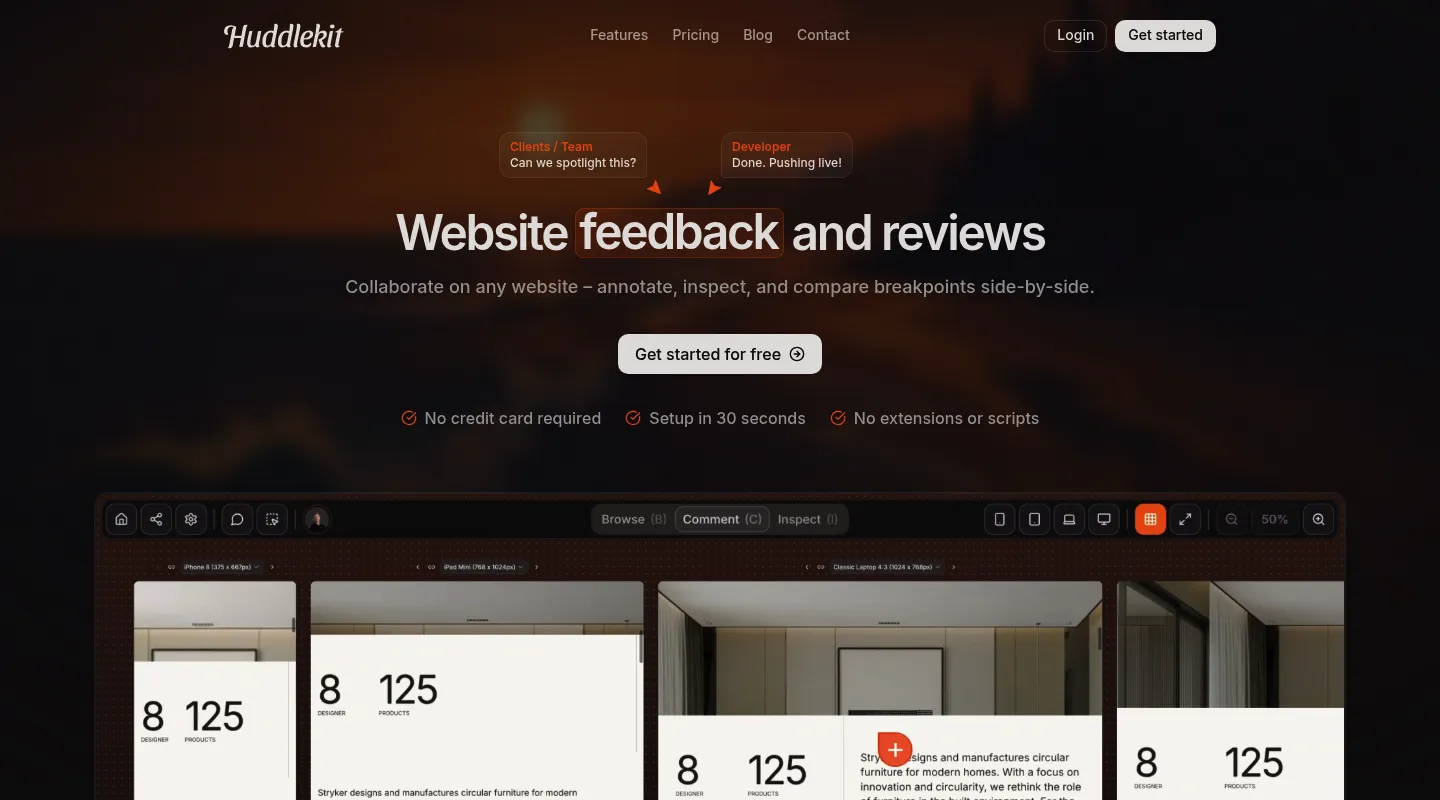
Huddlekit loads your staging or live site from its URL, so there's nothing to install on the site or in anyone's browser. Clients open a share link, type their name and click on the page to comment. For pages behind a login, a small widget runs inside your own app instead.
Key features:
- Opens a site by URL with nothing to install. Site passwords on Webflow, Vercel, Netlify, WordPress, Squarespace and Shopify work, and so does basic auth.
- A web app widget (one script tag) for pages behind a login, such as dashboards and member areas.
- Testers join from a share link with no account. A name is required and an email is optional.
- Each comment is pinned to the element and carries a screenshot, the page and the browser details.
- Switch between mobile, tablet, laptop and desktop widths, or see all four side by side in canvas view (Pro and Team).
- A board with four statuses (Open, In Review, In Progress, Resolved), plus priority, assignees and due dates.
- Review rounds (Pro and Team): start a new round for the next version, and earlier rounds stay readable.
- Private comments for your team that guests on the share link never see.
- Images, PDFs and videos can be reviewed in the same workspace.
- Integrations on Team: Linear, ClickUp, Notion, Asana, Trello, Slack, Zapier, webhooks and the API. MCP for AI tools on Pro and Team.
Pricing:
- Free: 1 project, up to 3 team members, 100 MB storage
- Pro: $16/mo billed yearly ($19 monthly): unlimited projects, 3 team members, 5 GB storage
- Team: $33/mo billed yearly ($39 monthly): 15 team members, 50 GB storage, integrations and API
Guests are unlimited on every plan, and new subscriptions come with a 30-day money-back guarantee. See Huddlekit's pricing for the current details.
Pros:
- Nothing for the client to install or sign up for
- Works on password-protected staging sites
- Priced per workspace, so adding client testers costs nothing
- Rounds keep each version's feedback apart
Cons:
- No console logs or network requests. Developer-grade bug reports need a tool from Part 2.
- No test cases or pass/fail scripts.
- No dedicated "Approved" status. Teams use a custom tag or the Resolved status for sign-off.
- The review view needs a desktop browser. Phones and tablets get a "please use a desktop browser" screen, so testing on real devices needs another tool (the web app widget does work on phones).
- No native Jira or GitHub sync. Those go through Zapier on Team.
Send your client one link and get UAT feedback pinned to the page.
Try Huddlekit2. BugHerd
Best for: Agencies that want client UAT feedback and a built-in task board in one tool, and can add a script to each site.
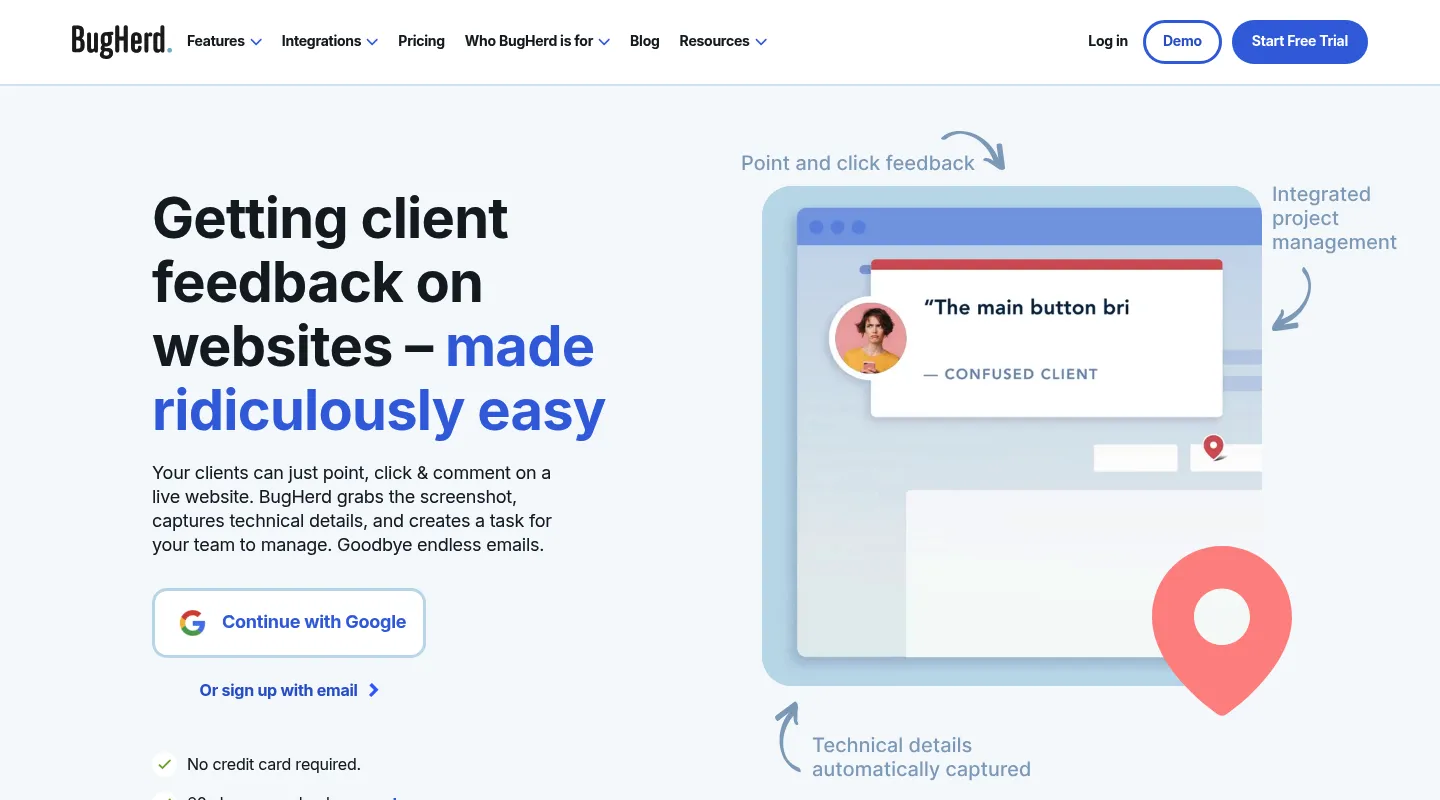
BugHerd pins feedback to elements on your site and turns each comment into a task on its own board. It runs from a JavaScript snippet on the site, a WordPress plugin or a browser extension. It doesn't load sites by URL.
Key features:
- Feedback pinned to page elements, with a screenshot and the browser, OS, screen size and URL (every plan).
- Video feedback of up to a minute per recording (every plan).
- A task board for working through feedback, with a client view of it on Premium.
- Clients you invite sign in with an emailed link. With the snippet installed, a public feedback tab also lets any visitor send feedback without an invite.
- Feedback on PDFs, images and Figma files, with versioning in beta.
- Feedback deadlines: pause new feedback on any plan, or schedule a deadline on Premium.
- Integrations: Trello, Slack, GitHub and Zapier on every plan. Jira, Linear, Asana, ClickUp and Monday.com on Premium and up.
Pricing:
- Standard: $42/mo billed yearly ($50 monthly): 5 members
- Studio: $67/mo billed yearly ($80 monthly): 10 members
- Premium: $125/mo billed yearly ($150 monthly): 25 members
- Custom: contact sales
Guests and projects are unlimited on every plan, and extra members cost $8/mo each on monthly billing. There's no free plan, but there is a free trial and a 60-day money-back guarantee.
Pros:
- The task board is built in, so small teams don't need a separate tool
- Unlimited guests and projects on every plan
- Feedback from real phones works once the snippet is on the site
Cons:
- Something has to be installed: the snippet on each site, or an extension for each reviewer.
- Jira, Linear, Asana and ClickUp need Premium ($125/mo billed yearly).
- No test cases and no approval step. Clients can close or reopen their own tasks.
- Console logs aren't clearly documented: BugHerd's own pages disagree, and network requests aren't mentioned.
3. Marker.io
Best for: Teams whose UAT reports go straight to developers in Jira, Linear or GitHub, with console logs and session replay attached.
Marker.io adds a feedback widget to your site through a script, an NPM package or a CMS plugin, and sends every report into your issue tracker. Clients report through the widget without an account. Your own team can also use its browser extension.
Key features:
- Annotated screenshots with the browser, OS, screen size and URL on every plan.
- Console logs, network requests and session replay (the last 2.5 minutes) on Team, Business and the Agency plan.
- Reports go to Trello, Asana, ClickUp, GitHub or Linear on every plan, and to Jira on Team and up.
- A guest portal where clients follow their issues, with status synced from your tracker and a notification when an issue is closed.
- Unlimited guests and reporters on every plan.
Pricing:
- Starter: $39/mo billed yearly ($59 monthly): 3 members, up to 10 projects
- Team: $149/mo billed yearly ($199 monthly): 15 members, up to 50 projects
- Agency: $99/mo billed yearly ($129 monthly): 15 members, 50 active client projects, with session replay, developer tools and Jira. For service businesses with fewer than 50 employees.
- Business: custom, billed yearly
There's no free plan. The trial is 15 days on Team, up to 25 issues, with no card.
Pros:
- More developer detail than any other tool in this group: console, network and session replay
- Clients report without an account
- Status changes sync between your tracker and the client's view
Cons:
- Needs a script, plugin or extension. It doesn't load sites by URL.
- Console logs, network requests and session replay start at the Agency plan ($99/mo billed yearly) or Team ($149/mo).
- No built-in screen recording.
- No test cases or approval step that Marker.io's site describes.
4. Feedbucket
Best for: Agencies that install a script on every client site and want feedback, from real phones too, to land in their project tool on any plan.
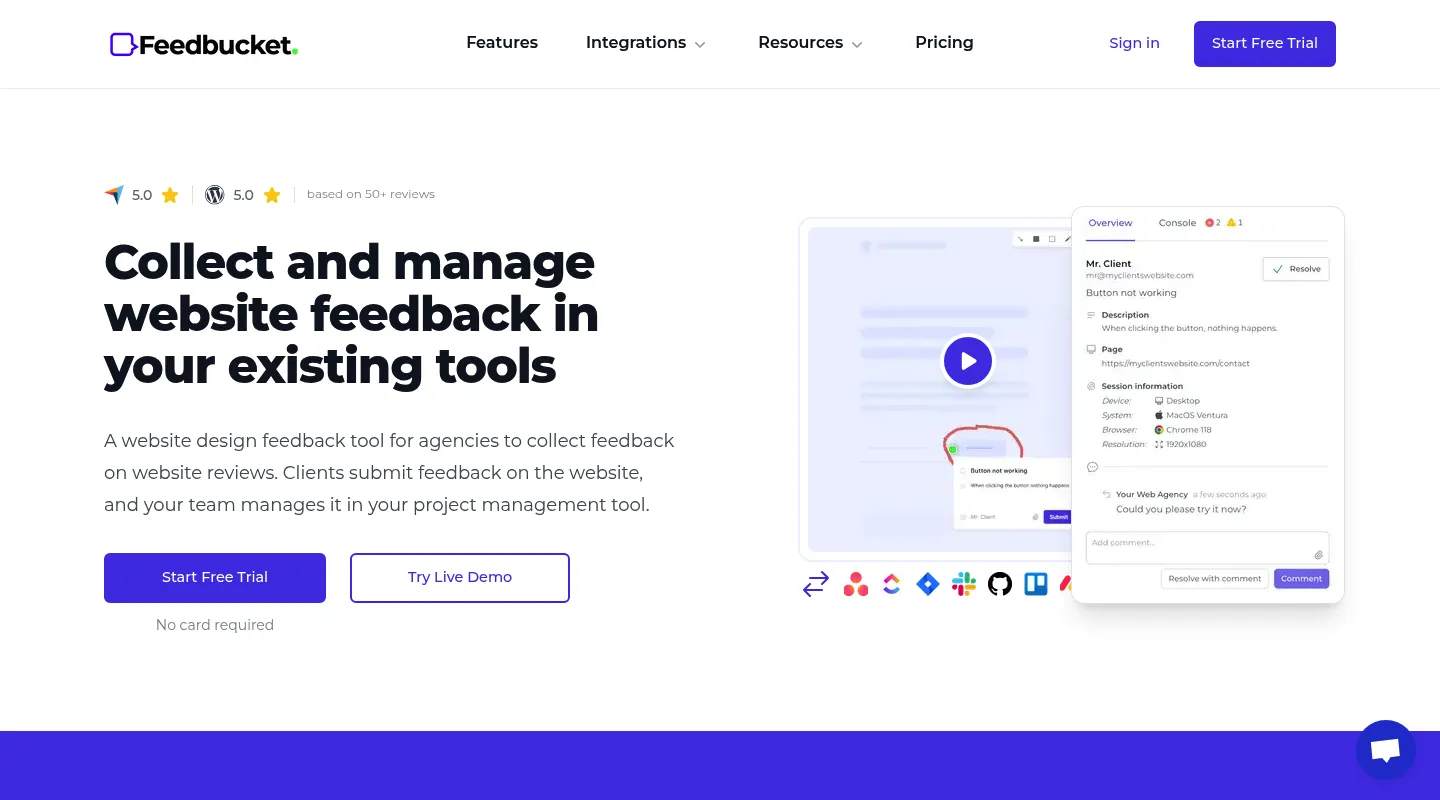
Feedbucket runs from a script tag or a WordPress plugin on the site. Clients give feedback on the real site, on their own device, with no account or extension, and each report goes to your project tool.
Key features:
- Automatic screenshots, plus video recording with audio that keeps going across pages (not on mobile).
- The URL, browser, OS, resolution and console logs with each report. Its pricing page lists console logs on every plan in one place and under Business in another.
- Jira, Linear, Asana, ClickUp, Trello, GitHub, Slack, Zapier and Monday.com on every plan.
- Feedback on images and designs in upload projects.
- Close feedback per project, for clients, team members or both.
Pricing:
- Pro: $39/mo billed yearly ($49 monthly): 2 team members
- Business: $72/mo billed yearly ($89 monthly): 25 team members
- Enterprise: custom
Projects and client reporters are unlimited. There's no free plan, but there is a 14-day trial with no card. Yearly plans can be refunded within 14 days, monthly plans can't.
Pros:
- Every integration on every plan
- Feedback comes from the client's real device, phones included
- No account or extension for clients
Cons:
- A script on every site you review, so you need access to each client's site.
- Pro covers 2 team members. A third person means Business.
- No approval step or versions mentioned on its site.
- No free plan.
5. zipBoard
Best for: Teams that want each reviewer to close their review with a status, including "Approved", and to compare versions side by side.
zipBoard reviews live and staging websites, PDFs, images, video and zipped HTML or SCORM packages. Each reviewer finishes with a review status, which makes it one of the few tools here with a built-in approval for websites.
Key features:
- Add a live or staging URL and share a review link. zipBoard's help docs say reviewers may be asked to install its browser extension for live sites and screenshots, while its marketing pages say there's nothing to install.
- Uploads: PDFs, images, video, audio and zipped HTML or SCORM.
- Browser, OS and screen size on every comment.
- Each reviewer closes their review as Changes Requested, Feedback Given, Approved or Review Complete. Guests can do this without an account.
- Versions with side-by-side comparison, including two versions of a live URL.
- Review cycles set up as boards.
- Integrations on the Agency plan: Jira, Slack, Zapier, Wrike, Microsoft Teams and a few more.
Pricing:
- Team: from $99/mo: up to 20 assets, 1 GB storage, 1 manager (extra managers $25/mo each), unlimited reviewers and projects
- Agency: from $199/mo: up to 50 uploads, project reports and integrations
- Enterprise: contact sales
Prices rise with the number of assets, and yearly billing saves 16.6%. There's no free plan, but there is a 14-day trial with no card.
Pros:
- A real approval from each reviewer, guests included
- Side-by-side version comparison, even for live URLs
- Unlimited reviewers
Cons:
- The Team plan stops at 20 assets.
- Integrations need the Agency plan, and there's no Linear, Asana, ClickUp or Trello integration.
- Reviewers may need its browser extension for live sites.
- No console logs or network requests mentioned on its site.
Part 2: Bug reports with technical detail
These tools are built for testers and developers. Each report can carry the console log, the network requests and a recording, which saves a developer from reproducing the bug from a vague description.
6. Usersnap
Best for: Product teams running UAT on a web app who want structured bug reports, screen recordings and two-way sync with Jira, Azure DevOps or Linear.
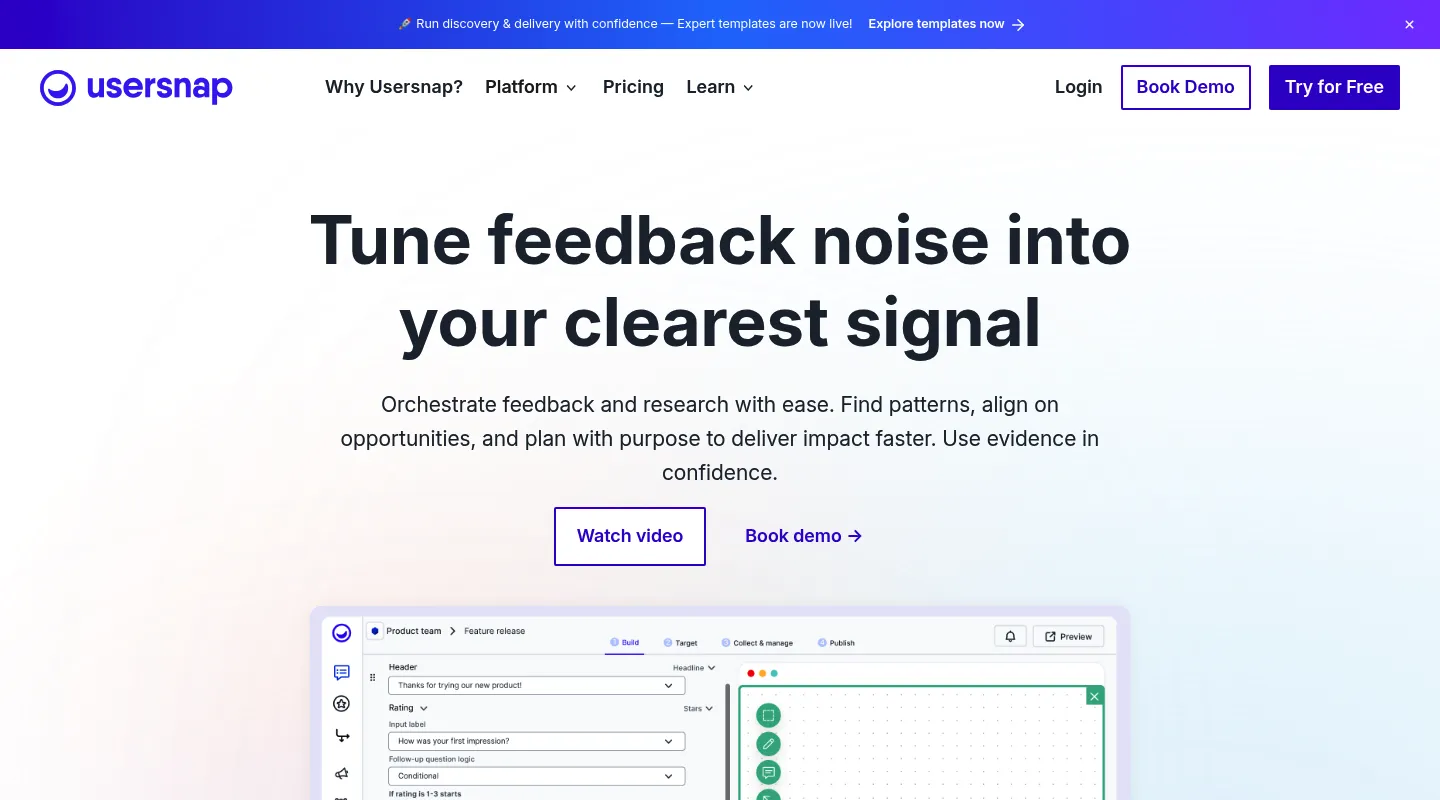
Usersnap collects feedback and bug reports through a widget on your site or app, browser extensions, or a shareable feedback link that needs nothing installed on the site. It also runs surveys and feedback boards, so it reaches well beyond UAT.
Key features:
- Annotated screenshots and screen recordings of up to 3 minutes on every plan. Recording doesn't work in mobile browsers or in Safari on desktop.
- The time, browser, device, location and URL with each report.
- Console logs with JavaScript errors and XHR and fetch requests. Usersnap's pricing page lists them on every plan, but its help center calls them a gated feature, so check before you buy.
- Two-way sync with Jira, Azure DevOps, Asana and Linear.
- A guest portal where outside testers follow their tickets, on Professional and up.
- Reporters don't need an account.
Pricing:
- Starter: €39/mo billed yearly (€49 monthly): 2 seats, 2 projects
- Growth: €99/mo billed yearly (€129 monthly): unlimited seats, 10 projects
- Professional: €179/mo billed yearly (€219 monthly): 20 projects
- Premium: €389/mo billed yearly (€459 monthly): 50 projects
- Enterprise: custom
Usersnap's page also lists US dollar prices. There's no free plan, but there is a free trial with no card.
Pros:
- Screen recording and environment details on every plan
- Two-way sync with the major issue trackers
- A feedback link that needs nothing installed on the site
Cons:
- Starter allows only 2 seats and 2 projects.
- Plans are capped by projects and page views, which suits one product better than many client sites.
- Which plan includes console logs is unclear on Usersnap's own site.
- No free plan, and no partial refunds.
7. Ybug
Best for: Small teams that want console logs and network requests in their bug reports at a low monthly price.
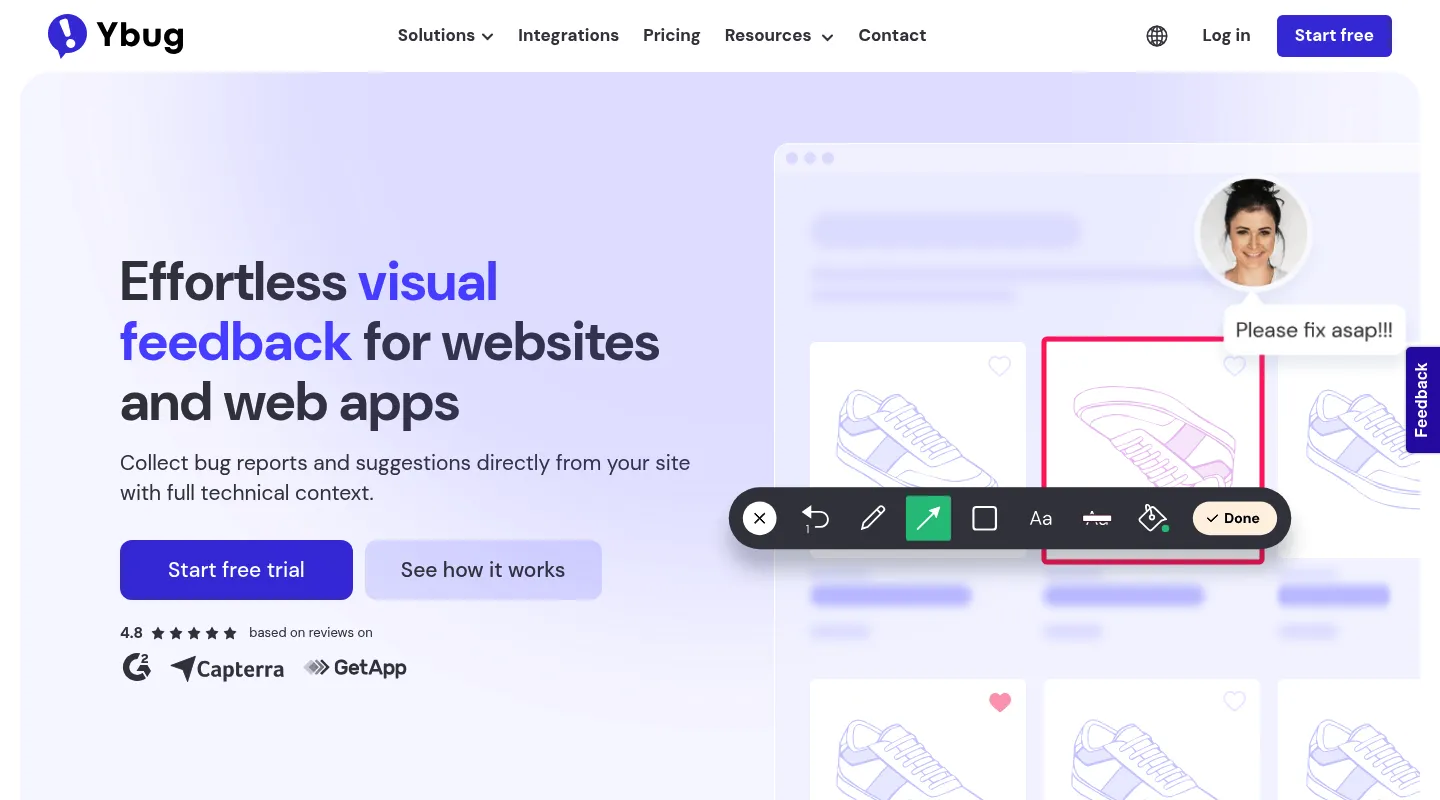
Ybug is a lightweight bug reporting widget, added with a two-line snippet, an NPM package or a WordPress plugin, with browser extensions on paid plans. Reporters don't need an account.
Key features:
- Browser, OS, screen resolution, pixel ratio and URL with every report (Basic and up).
- Console recording (limited on Basic, full on Startup and up) and network requests (Startup and up).
- Video recording on Startup and up. A full page load ends the recording.
- Jira, Linear, Asana, ClickUp, Trello, GitHub, Slack, Zapier and Monday.com on paid plans, with one integration per project on Basic.
- Custom fields on the Company plan, which teams use for test case IDs or sign-off status.
- Reporters get an email when the status of their report changes.
Pricing:
- Free: 1 project, 1 member, 50 screenshots a month
- Basic: €10/mo billed yearly (€13 monthly): 3 projects, 3 members
- Startup: €23/mo billed yearly (€29 monthly): 7 projects, 7 members
- Company: €47/mo billed yearly (€59 monthly): 15 projects, 15 members
Feedback and reporters are unlimited on every plan. There's a 10-day trial with no card, after which you move to the Free plan.
Pros:
- Console and network data from €23/mo billed yearly
- A free plan for one project
- All the common integrations
Cons:
- Projects and members rise together, so many client sites need a bigger plan.
- No test cases. Sign-off tracking needs custom fields on Company.
- Purchases are non-refundable.
- No comments pinned on the page for client review.
8. Jam
Best for: Developers and internal testers who want a one-click bug report with console logs, network requests and a replay, on a free plan.
Jam is a browser extension for Chrome and other Chromium browsers, plus apps for Mac and iOS, that records a bug with what a developer needs to fix it. Its Recording Links let someone outside your team record their screen without an extension or an account.
Key features:
- Screenshots and video, with console logs, network requests, device details and user actions on every plan.
- Instant Replay: keep the last 2 minutes of what happened on the page.
- Recording Links for people outside the team: no extension, account or download. They capture only the screen unless you connect your domain and add Jam's script to the site.
- Jira, Linear, Asana, ClickUp, GitHub and Slack, plus webhooks, on every plan.
Pricing:
- Free: 5 creator seats, 30 Jams a month, 5 Recording Links a month
- Team: $14 per creator per month, billed yearly: unlimited Jams, 150 Recording Links a month
- Enterprise: custom, billed yearly
Viewers are free. Team has a 14-day trial. Jam doesn't publish a monthly price for Team.
Pros:
- Console and network logs even on the free plan
- Very quick for internal testers
- Viewers don't need a paid seat
Cons:
- Built for internal teams. Anyone who creates a Jam needs a creator seat.
- Outside testers get screen-only recordings unless you add Jam's script to the site.
- No comments pinned on the page, no client review flow and no approvals.
Part 3: Test case management
If your UAT has to follow written test cases, with a pass or fail recorded for each step and a report at the end, you need a test management tool. Regulated projects, large web apps and public-sector work often require this. A typical agency marketing site doesn't.
9. TestMonitor
Best for: Teams that run UAT from written requirements and test cases, and want results, coverage and a summary report in one place.
TestMonitor is a test management tool with a strong UAT focus. You write requirements and test cases, group them into test runs, assign testers, and follow every result and issue through to a report.
Key features:
- Requirements, test cases, test runs and reports on every plan.
- Requirements coverage, with a status per requirement and a traceability matrix.
- A built-in issue tracker. An issue raised from a test result can carry that result's attachments.
- Summary reports to share in the app or save as a PDF.
- Jira, Azure DevOps, Slack and Asana on every plan, with two-way sync from Professional. GitHub and Trello work through Zapier.
Pricing:
- Starter: $11 per user per month billed yearly ($13 monthly), for 3 users
- Professional: $18 per user per month billed yearly for 5 users, falling to $10 per user at 100 users ($20 monthly)
- Enterprise: contact sales, from 10 users
Prices are in US dollars or euros depending on where you are, and you pay for every active user. There's no free plan, but there is a 14-day trial with no card.
Pros:
- Built around UAT: requirements, test runs and coverage
- A clear record of what passed and what failed
- Affordable for a small test team
Cons:
- Every tester needs a paid seat. There's no free guest tester role.
- No comments pinned on the page. Testers attach their own screenshots.
- No sign-off step as such. The summary report is the record.
10. TestRail
Best for: QA teams with large test suites who also run UAT, and want results pushed into Jira, GitHub or Azure DevOps.
TestRail is a test case management tool built for QA teams first, with UAT as one of the things you can run in it.
Key features:
- Unlimited test cases, suites, runs, plans and milestones on every plan.
- Results of Passed, Failed, Blocked and Retest by default, and you can add your own.
- Each result can carry a comment, screenshots or log files, and a defect pushed to your tracker.
- Traceability and defect reports, plus a Jira coverage check.
- Jira, GitHub, GitLab and Azure DevOps on every plan (set up account-wide only on Essentials).
- A review and approval workflow for test cases on Enterprise.
Pricing:
- Essentials: $22 per user per month billed yearly ($25 monthly), up to 5 users, cloud only
- Professional: $39 per user per month billed yearly ($41 monthly)
- Enterprise: $78 per user per month, billed yearly only
There's no free plan, but there is a 30-day trial with no card.
Pros:
- Unlimited test cases and runs on every plan
- Strong links to developer tools
- The longest trial in this list
Cons:
- Every user is a paid seat. "Guest" is a read-only role, not a free licence.
- Built for QA teams, so it's heavy for a single client UAT round.
- No comments pinned on the page, and no Slack integration listed.
Part 4: Real devices and browsers
Breakpoint previews and responsive modes show you layouts. They run in your own browser, so they won't show you a bug that only happens in Safari on an iPhone or in an older Android browser. For that you need real devices.
11. BrowserStack Live
Best for: Checking a site on real phones, tablets and browsers you don't own, before the client finds the bug on theirs.
BrowserStack Live gives your team remote access to real devices and desktop browsers from your own browser. It isn't a feedback tool for clients. Your testers use it, and report bugs from a session into Jira and other trackers.
Key features:
- Real phones and tablets, plus desktop browsers, used from your browser. Phones need the Desktop & Mobile plan or a Team plan.
- "Report on Jira" from a session: an annotated screenshot, with the browser, OS, device and resolution filled in automatically.
- Session recording.
- Jira, Slack, Trello and GitHub on the Team plans and up.
Pricing:
- Freelancer: $12.50/mo billed yearly ($19 monthly): 1 user, 100 minutes of testing
- Desktop: $29/mo billed yearly ($39 monthly): 1 user, unlimited minutes, desktop browsers only
- Desktop & Mobile: $39/mo billed yearly ($49 monthly): 1 user
- Team: $150/mo billed yearly ($175 monthly) for 5 users, with Team Pro and Enterprise plans above it
There's no free plan. The trial gives you 30 minutes of cross-browser testing and 1 minute per device.
Pros:
- Real devices without buying them
- Device details filled in on every bug report
- A cheap plan for one person
Cons:
- It's for your own testers, not for clients.
- Integrations need a Team plan.
- Every user is a paid seat.
How to run UAT on a website project
This is the process I'd use on a typical agency site. It fits in a week for a marketing site, and takes longer for anything with accounts or payments.
- Agree on what "accepted" means before testing starts. Write down the acceptance criteria: the pages, the flows (contact form, booking, checkout), and the browsers and devices that matter. Put the number of feedback rounds in the contract while you're at it.
- Prepare staging. Real content, forms that send somewhere safe, payments in test mode, and a password if the client wants one.
- Give testers short scenarios, not "have a look around". "Book a table for four next Friday and check the confirmation email" finds more than an open invitation does. Five to ten scenarios is enough for most sites.
- Send one link with a deadline. One share link for the whole round, with a date on it. Name one person on the client side who makes the final call.
- Triage every day. Sort each comment into a bug, a change request or a question. Change requests outside the agreed scope go on a separate list, not into this round.
- Fix, then start a new round. Keep the next version's feedback apart from the last one, so nobody re-reports something that's already fixed.
- Close with a written sign-off. An email, a status or a test report that says the site is accepted. It's the line between "launch" and "one more round".
Which UAT tool should you choose?
- You're an agency and the testers are your clients: start with a Part 1 tool. Huddlekit if you can't or don't want to install anything on the site. BugHerd or Feedbucket if a script on every site is fine and you want feedback from real phones.
- The contract asks for a formal approval from each stakeholder: zipBoard records a review status per reviewer, including Approved. In Huddlekit, a custom "Approved" tag plus a written sign-off covers most projects.
- It's a web app and bugs need developer detail: Marker.io on its Team or Agency plan, or Ybug if budget matters. If clients test too, pair it with a Part 1 tool.
- Your developers live in Jira and the testing is internal: Jam for quick reports, or Usersnap if you also want recordings and two-way sync.
- Regulated or large projects with written test cases: TestMonitor for UAT-focused work, TestRail if a QA team already runs its suites there.
- Mobile users matter: add BrowserStack Live to whatever else you use.
Frequently asked questions
What is a UAT tool?
A UAT tool helps the people a product is for test it before release and report what's wrong. For websites that usually means comments pinned to the page with a screenshot and browser details, a way to track each issue to done, and a clear sign-off at the end. Some UAT tools also manage written test cases and record a pass or fail for each step.
What is the difference between UAT and QA?
QA checks that the site works, and your own team does it. UAT checks that the site is what the client asked for, and the client or real users do it, usually just before launch. On website projects the two overlap, because clients report bugs and change requests in the same session.
Can clients do UAT without creating an account?
Yes, with most website feedback tools. Huddlekit asks for a name only. Marker.io and Feedbucket take feedback through a widget on the site, and zipBoard share links work without sign-up unless you require a login. BugHerd's invited clients sign in with an emailed link, though its public feedback tab takes feedback from anyone. Test management tools such as TestMonitor and TestRail need a paid seat for every tester.
Do I need a test management tool for UAT on a website?
Usually not. Test case tools such as TestMonitor and TestRail suit regulated or large projects that need a record of every step that passed. For a typical agency website, a short list of written scenarios plus a feedback tool covers it.
Which UAT tools capture console logs and network requests?
Jam captures both on every plan, including the free one. Marker.io adds them on its Team, Business and Agency plans, and Ybug on Startup and up. Usersnap and Feedbucket capture console logs, but their own pages disagree on which plans include them. Huddlekit doesn't capture either.
How do you get sign-off at the end of UAT?
Agree on it before testing starts: who signs, and what counts as accepted. Then close the round with something written. zipBoard records an approval per reviewer. In most other website tools, you mark every item done and send a short email confirming the round is accepted. For UAT run from test cases, a TestMonitor or TestRail report can serve as the record.
Can I run UAT on a password-protected staging site?
Yes, but tools handle it differently. Script-based tools such as BugHerd, Marker.io and Feedbucket run inside the site, so once the script is installed the password doesn't get in the way. Huddlekit opens the site by URL and accepts site passwords and basic auth, and uses a widget for sites behind a user login. zipBoard's help docs say reviewers may need its browser extension for live sites.
Is there a free UAT tool?
Huddlekit (1 project), Ybug (1 project, 50 screenshots a month) and Jam (5 creator seats, 30 reports a month) have free plans. Most of the other tools in this guide offer a trial of around two weeks instead, and TestRail's runs for 30 days.
Final thoughts
Most UAT problems on website projects aren't tool problems. They come from testing without agreed criteria, rounds without a deadline and no written sign-off. Fix those first with the process above, then pick the tool that matches who is testing.
If your testers are clients and the site is on a staging URL, try Huddlekit. If your testers are developers, start with Jam or Marker.io. If the contract asks for test cases, start with TestMonitor.
Sources
Every price and plan limit above was read from the vendor's own pricing page on 17 November 2026. Where a vendor's pages disagreed with each other, the entry says so.
- Huddlekit pricing: checked 17 November 2026
- BugHerd pricing: checked 17 November 2026
- Marker.io pricing: checked 17 November 2026
- Feedbucket pricing: checked 17 November 2026
- zipBoard pricing: checked 17 November 2026
- Usersnap pricing: checked 17 November 2026
- Ybug pricing: checked 17 November 2026
- Jam pricing: checked 17 November 2026
- TestMonitor pricing: checked 17 November 2026
- TestRail pricing: checked 17 November 2026
- BrowserStack Live pricing: checked 17 November 2026
Related comparisons
See how the tools in this guide compare head-to-head with Huddlekit:
- Marker.io alternative: developer QA tool vs. no-install client review
- BugHerd alternative: script or extension with a task board vs. opening the site by URL
- Feedbucket alternative: website feedback for agencies, compared plan by plan
- Usersnap alternative: structured bug reports vs. visual client feedback
- Ybug alternative: lightweight bug reporting vs. client review
Related resources
- Best client feedback tools for agencies: tools for client feedback and approvals on websites, designs, PDFs and video
- Best visual feedback tools in 2026: 15 tools for website, product and creative feedback
- Website review process that actually works: how to structure review rounds with clients
- Website breakpoint reviews: checking layouts at every screen size
- How to give better website feedback: what makes a comment easy to act on


