Turn website feedback into ClickUp tasks
Clients comment on the live site with no account or extension. Each one becomes a ClickUp task, with status synced both ways.
From a client's click to ClickUp and back again
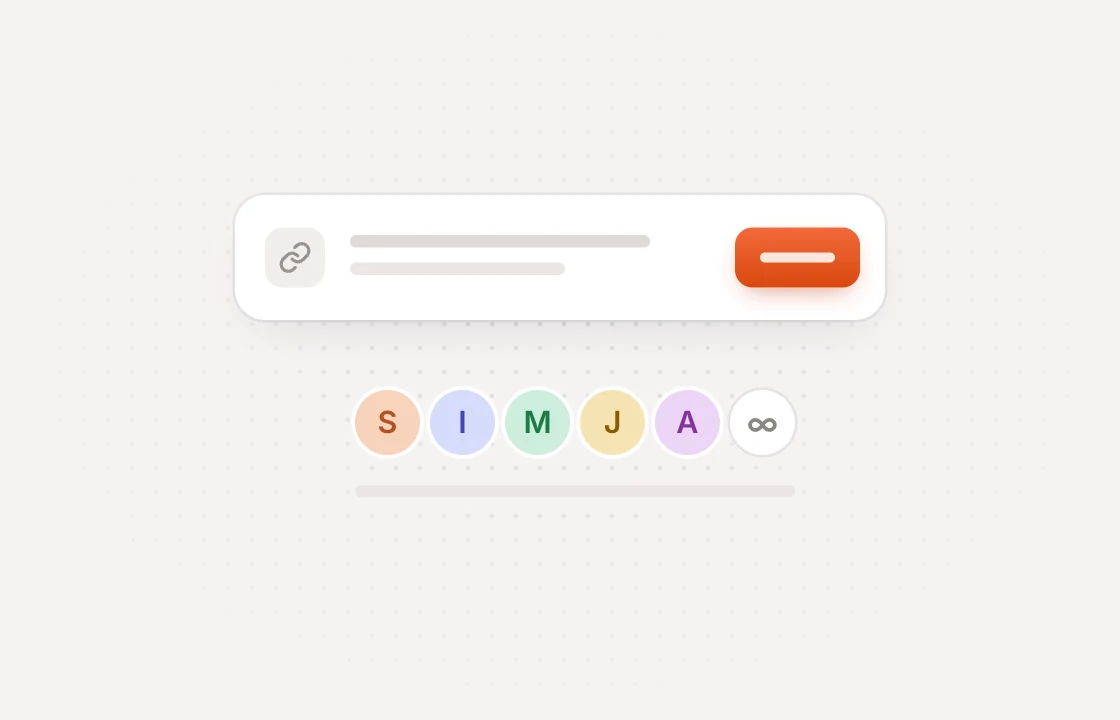 Collect
Clients comment on the page
Share a link and clients pin feedback on the exact spot. No account or extension needed.
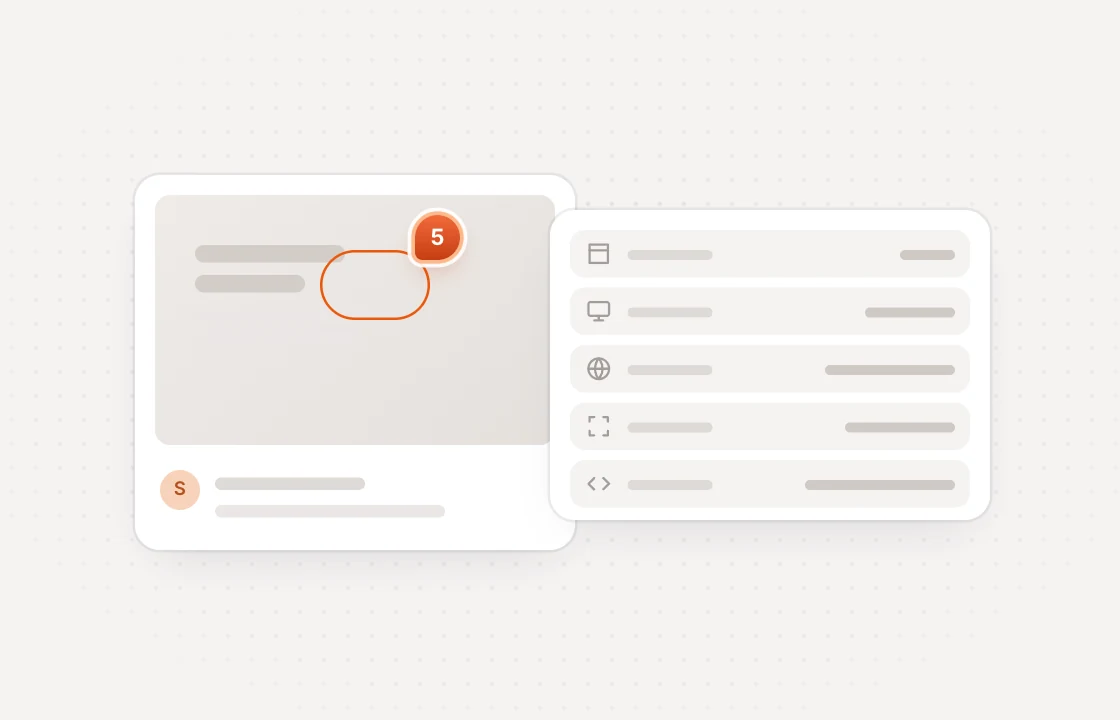 Send
SendTasks land in the right List
Every new comment becomes a ClickUp task with its screenshot, page link and environment.
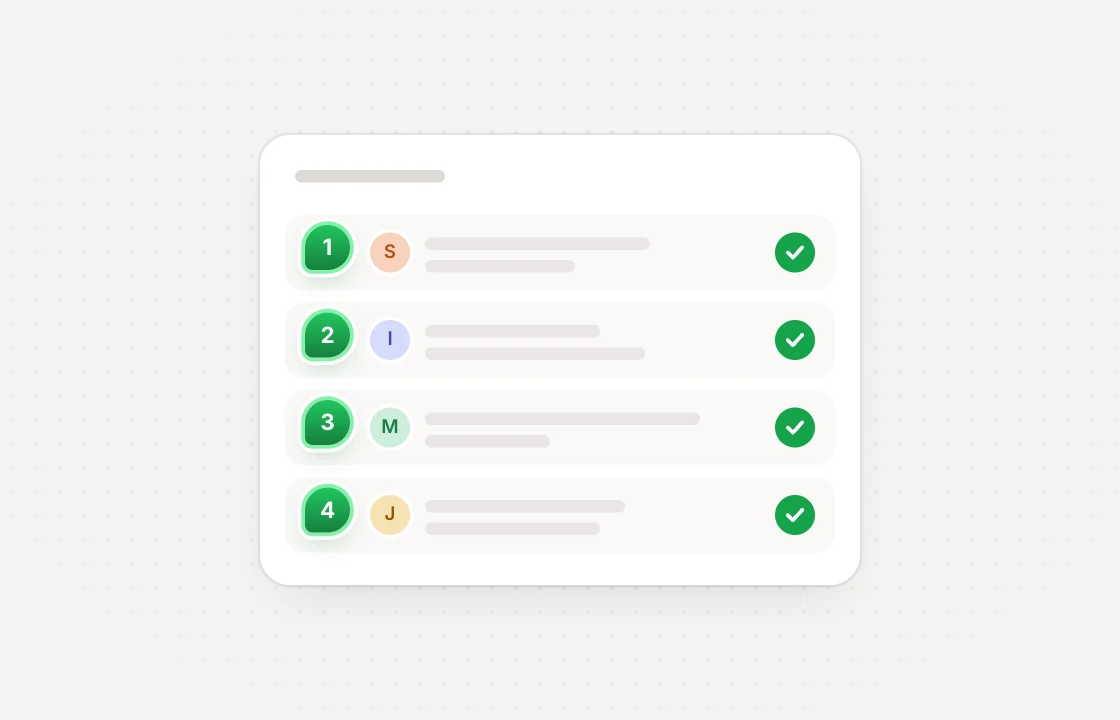 Sync
SyncStatus syncs both ways
Move the task to another status and the comment follows. Change it in Huddlekit and ClickUp catches up.
Every task arrives ready to work on with the context developers ask for
 Huddlekit + ClickUp
Set it up the way your team works right down to the List
Route by project
Pick the Workspace, Space and List for each project, use a default List, or keep a project out.
Custom statuses welcome
Statuses are matched by name first, and you can map any of them yourself.
Won't fix isn't resolved
Statuses like Cancelled or Won't fix never mark the client's comment as resolved.
One-way if you prefer
Switch to one-way sync and changes made in ClickUp stay in ClickUp.
Nightly check
A nightly job repairs any drift. If both sides changed, Huddlekit wins and notes it on the task.
Admins in control
Only workspace owners and admins can connect ClickUp or change where comments go.
The ClickUp integration is on the Team plan. Compare plans
Integrations come with Team start free and upgrade when you connect
- 3 team members
- 1 project
- Unlimited guests
- 100 MB storage
- 3 team members
- Unlimited projects
- Unlimited guests
- 5 GB storage
- Connect Claude & Cursor (MCP)
- 15 team members
- Unlimited projects
- Unlimited guests
- 50 GB storage
- Connect Claude & Cursor (MCP)
- Integrations
- API access
Every limit and feature, plan by plan. Compare plans
Commonly asked questions and some more.
How do I connect ClickUp to Huddlekit?
A workspace owner or admin opens the workspace's Integrations page, clicks Connect on ClickUp and approves access. Then pick a Workspace, Space and List as the default, or send each project to a List of its own.
Which comments become ClickUp tasks?
Every new comment on a project that syncs, whether it was left on a website, a web app or an uploaded file. Private comments are included.
What does each ClickUp task include?
The title is the comment number and its first line. The description holds the full comment, the project, who reported it, a link to the page, the screenshot, the OS, browser, resolution, viewport, pixel ratio, color depth and network it was left in, and a link back to the comment in Huddlekit.
What stays in Huddlekit?
Replies, priority, tags, assignees and attachments. Status is the only thing that syncs both ways, so comments your team adds in ClickUp stay in ClickUp.
Which plan do I need?
Team. ClickUp, like every other integration and the API, is on the Team plan. If the workspace moves off Team, syncing stops until you upgrade again.
Have more questions? Visit our support center.
Works with the rest of your stack more ways to move feedback
Linear
Turn comments into Linear issues and keep status in sync.
Notion
Turn comments into Notion pages and keep status in sync.
Slack
Post comments to a channel and resolve them without leaving Slack.
Zapier
Send comments to thousands of other apps without writing code.
Webhooks & API
Push comments to your own endpoint, and read or update them.
MCP for AI tools
Let Claude, Claude Code or Cursor work through your comments.
Looking for something else? See all integrations