Get website feedback in Slack as it arrives
Clients comment on the live site with no account or extension. Each one posts to Slack, where your team can resolve it.
From a client's click to Slack and back again
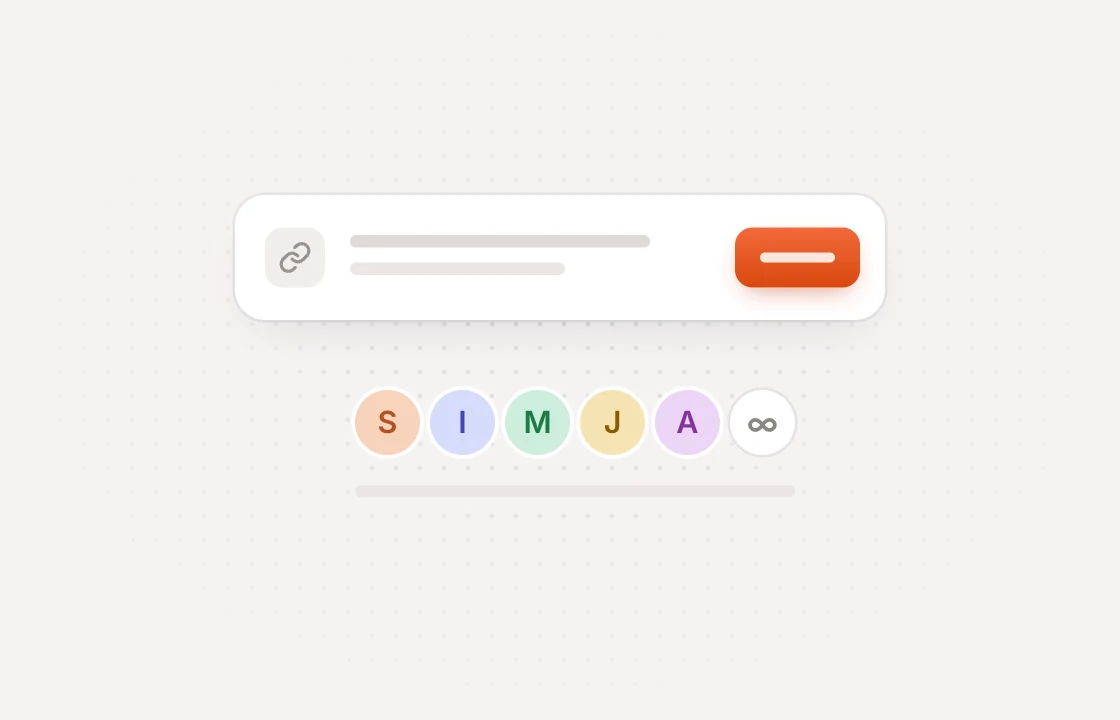 Collect
Clients comment on the page
Share a link and clients pin feedback on the exact spot. No account or extension needed.
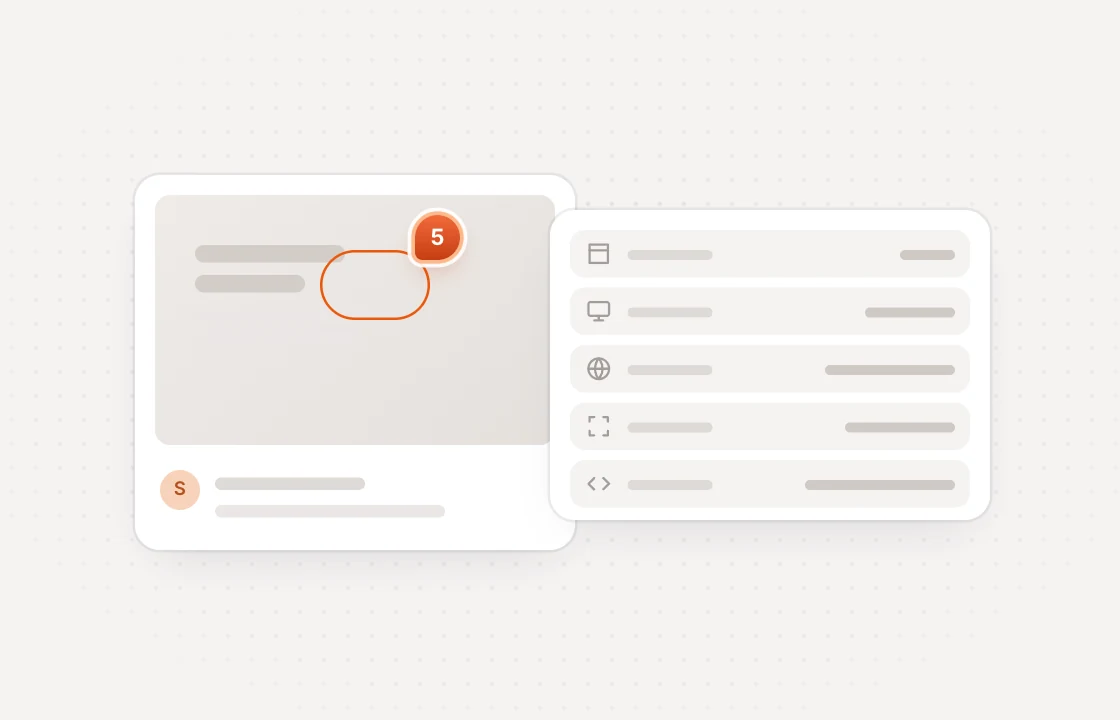 Post
PostComments post to Slack
With its status, who left it, the page it was left on and its screenshot, as soon as it arrives.
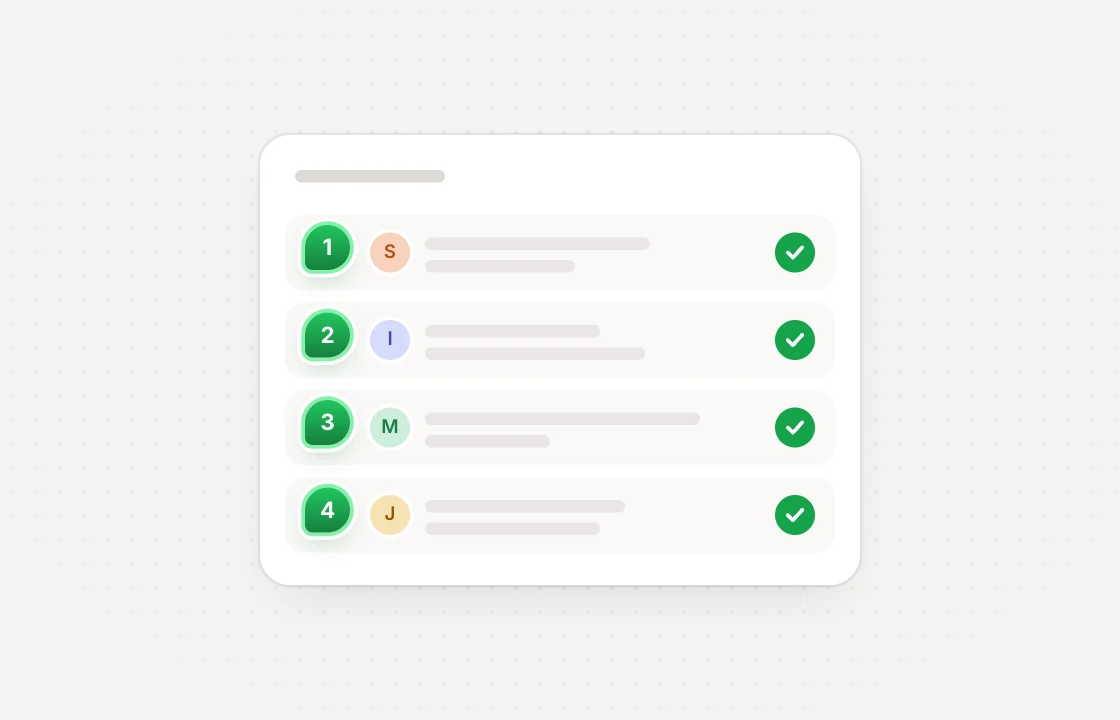 Resolve
Resolve it from the message
Press Resolve and the comment closes in Huddlekit. The message updates itself as the status changes.
One message per comment kept up to date as it moves
 Huddlekit + Slack
Made for busy channels and the people who live in them
Pick the channel
Choose a default channel and send any project to its own. Or keep a project out of Slack.
Public or private
Public channels work straight away. Invite the Huddlekit app to post in a private one.
Updated in place
Status changes, edits and late screenshots update the original message instead of posting again.
Resolve or reopen
Resolve a comment from the message, or reopen it if the fix didn't hold.
Status at a glance
Every message shows whether its comment is open, in review, in progress or resolved.
Admins in control
Only workspace owners and admins can connect Slack or change where comments post.
The Slack integration is on the Team plan. Compare plans
Integrations come with Team start free and upgrade when you connect
- 3 team members
- 1 project
- Unlimited guests
- 100 MB storage
- 3 team members
- Unlimited projects
- Unlimited guests
- 5 GB storage
- Connect Claude & Cursor (MCP)
- 15 team members
- Unlimited projects
- Unlimited guests
- 50 GB storage
- Connect Claude & Cursor (MCP)
- Integrations
- API access
Every limit and feature, plan by plan. Compare plans
Commonly asked questions and some more.
How do I connect Slack to Huddlekit?
A workspace owner or admin clicks Connect on Slack under the workspace's Integrations and approves the app in Slack. Then pick a default channel, and send any project to a channel of its own.
What does each Slack message include?
The comment number, project and text, its status, who left it, the page it was left on and its screenshot, plus buttons to resolve it or open it in Huddlekit.
Can I reply to a comment from Slack?
No. From Slack you can resolve and reopen comments. To reply, click Open in Huddlekit and answer on the thread, where the client will see it.
Who can press Resolve?
Anyone who can see the message in Slack. Private comments are posted too, so send them to a channel only your team uses, not one shared with clients.
Which plan do I need?
Team. Slack, like every other integration and the API, is on the Team plan. If the workspace moves off Team, new comments stop posting and the buttons explain why.
Have more questions? Visit our support center.
Works with the rest of your stack more ways to move feedback
Linear
Turn comments into Linear issues and keep status in sync.
ClickUp
Turn comments into ClickUp tasks and keep status in sync.
Notion
Turn comments into Notion pages and keep status in sync.
Zapier
Send comments to thousands of other apps without writing code.
Webhooks & API
Push comments to your own endpoint, and read or update them.
MCP for AI tools
Let Claude, Claude Code or Cursor work through your comments.
Looking for something else? See all integrations